
If you want a little more control over where your Action Buttons show up, the shortcode may be the best fit for you
Instead of relying on auto-insert, you can drop your buttons exactly where you want them — inside content, templates, widgets, or even headers.
The basic shortcode #
If you just want to use your default set of Action Buttons, it’s super simple:
[hubbub_action_buttons]That will display the same buttons you’ve already set up in your Action Buttons settings.
Using a specific button set (pattern) #
If you’ve created multiple sets of Action Buttons, you can choose exactly which one to display by gathering the ID of the pattern and outputting this into the shortcode.
How to find your pattern ID #
This is the part that trips most people up, but it’s actually pretty easy once you know where to look.
Option 1: From the patterns list #
- Go to Hubbub > Action Buttons
- Click View All Patterns
- Hover over the pattern you want to use
- Look at the URL preview (usually in the bottom corner of your browser)
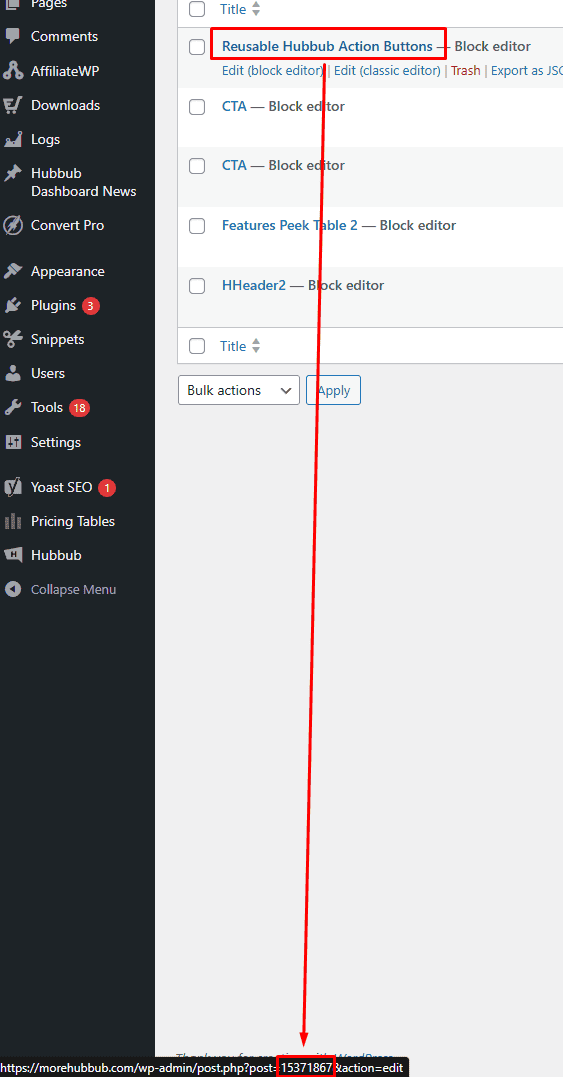
Option 2: From inside the pattern editor #
- From the same location as Option 1, click Edit on the pattern of your choice
- Look at the URL bar

Using a pattern ID #
Once you’ve gathered the pattern ID, add it to the shortcode like this…
[hubbub_action_buttons id="1234"]When should you use the shortcode? #
The shortcode is perfect when you want to:
- Place buttons in a very specific spot in your content
- Add buttons to templates, headers, or widget areas
- Use different button sets on different posts
Basically, anytime auto-insert feels a little too “one-size-fits-all,” the shortcode gives you flexibility.
Quick Tips #
- You can use more than one shortcode on a page (even with different patterns)
- It works in posts, pages, widgets, and most theme areas