
With Hubbub Pro+ 2.28.0, you can add Action Buttons to your website to encourage readers to take action directly from your content.
Action Buttons are clickable call-to-action buttons that can be placed automatically or manually anywhere inside your posts and pages.
What can Action Buttons do? #
Use them to:
- Send readers to AI tools with your prompt and page URL
- Send Google Trusted Source links
- Jump to sections within the same post
- Link to external URLs
- Open sharing options with a Share button
Action types #
Each Action Button can be configured with a specific action type:
AI Action #
Build links to supported AI services using:
- A custom prompt
- The current page URL
You can:
- Append the page URL to the prompt
- Show or hide the icon
- Open in a new tab
Google Trusted Source #
Creates a Google search that prioritizes your site as a trusted source.
Allspice #
Requires 2.30.0 or higher. Supports opening various commands supported by Allspice including:
- Open groceries
- Start guided cooking
- Open this recipe
- Search for a recipe (with customizable prompt)
- Open my pantry
- Ask about this recipe (with customizable prompt)
Share #
Turns the button into a share trigger.
Share options:
- Show all Share Networks → Opens Hubbub’s full share modal
- Use Default Share Sheet → Uses the device/browser native share UI
Jump To #
Scrolls to a specific section on the same page using an anchor link.
External Link #
Links to any custom URL.
Three ways to insert Action Buttons #
Action buttons can be inserted in two different ways…
- Automatically insert via a reusable pattern (recommended)
- Manually insert by adding an Action Button block
- Manually insert via a shortcode
Auto-inserting Action Buttons #
Hubbub uses a reusable pattern to automatically insert a set of buttons into your posts.
Configure auto-insert #
To configure the auto-insertion…
- Go to Hubbub > Action Buttons
- In the Auto-Insert Settings, where you would like the buttons to appear
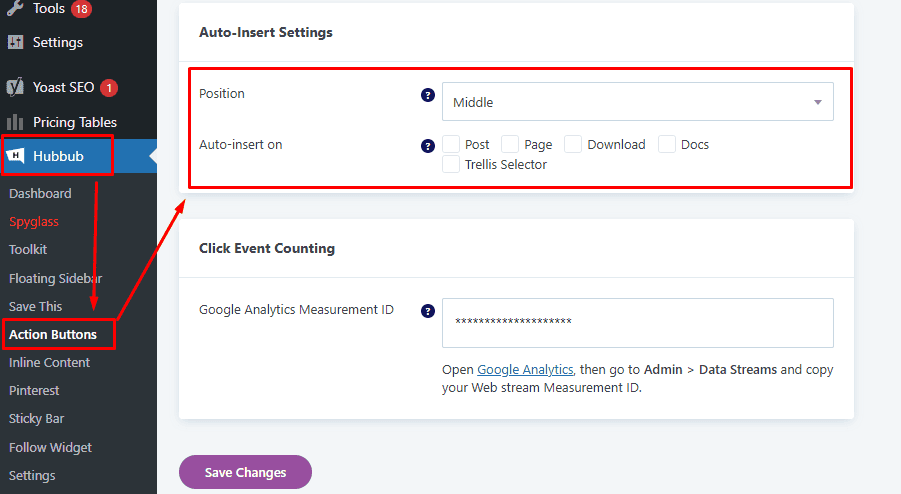
- Select the position within the post/page where you would like the Action Buttons to be placed, along with the post types this should apply to
- Click Save Changes
Manually inserting Action Buttons via a Block #
You can also add Action Buttons anywhere inside a post or page by using a standard WordPress block.
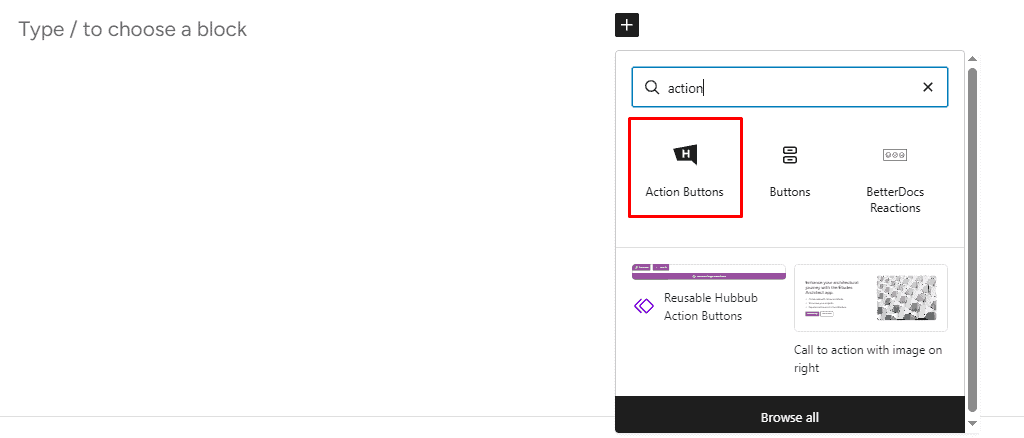
- Open the WordPress editor
- Add the Action Buttons block (type
/action) - Click + inside the block to add buttons
- Select each button to customize its settings
Manually Inserting Action Buttons via a Shortcode #
Lastly, you can insert a reusable Action Buttons pattern anywhere using a shortcode.
For full instructions, see: 👉 Action Buttons Shortcode
Creating additional custom sets of Action Buttons #
Hubbub allows you to create multiple reusable button sets (patterns).
For full instructions, see:
👉 How to Create a Custom Set of Action Buttons
Tracking and analytics #
Hubbub tracks Action Button clicks automatically in WordPress.
You can also send events to GA4:
- Go to Hubbub > Action Buttons.
- In Tracking, enter your Google Analytics Measurement ID (
G-XXXXXXXXXX). - Save.
Troubleshooting #
If Action Buttons are not appearing:
- Confirm the Action Buttons feature is enabled
- Confirm auto-insert is enabled for the post type
- Confirm that your theme properly outputs
the_content - Clear all caching active on the site
If Share buttons don’t open the device share sheet:
- Test on a modern mobile browser
- Use Show all Share Networks for better compatibility
If Action Buttons appear with broken styling
- Clear the Used CSS feature within WP Rocket or Perfmatters, if either are active
- Clear all caching active on the site