
Hubbub Pro 2.31.0 is our biggest Save This update yet! You can now build as many Save This forms as you like, each with its own look, its own email and its own rules for where it appears. Plus GA4 event tracking for your share buttons, and a lot more.
Pro tier updates
GA4 event tracking for share and follow buttons
Want to know which share buttons your readers actually use? Turn on Send Google Analytics Events (in Hubbub → Settings, under Misc) and Hubbub sends a GA4 share event to Google Analytics every time a reader taps a share button, the Pinterest Image Hover Button, a Click to Tweet box or a follow button. Save This form submissions are tracked too, on Pro+.
Using Google Tag Manager instead? Hubbub also pushes a hubbub_share event to the dataLayer, so you can build your own tags and reports.
❓Need help with GA4?
We recommend chatting with our friend and NerdPress Recommended Expert Sabrina Tatalias – The Measurement Maven – about how to gain insights from tracking these click events.
Your Pinterest image on the WP Recipe Maker Pin button
If you’ve set a Hubbub Pinterest Image on a post, the Pin button on your WP Recipe Maker recipe card now uses that image too. Readers pin the image you designed for Pinterest, no matter which button they click.
Hubbub works with AI agents
Hubbub Pro now shares its tools and settings with AI agents, such as the NerdPress Guided Agent Connector. Ask your assistant which Save This forms you have, or have it adjust a Hubbub setting for you. This requires WordPress 6.9 or above.
Pro+ Tier Updates
This release is all about Save This, with a big upgrade for Action Buttons too.
Multiple Save This forms!
Create as many Save This forms as you like from the new Forms tab (Hubbub → Save This → Forms). Give each one its own heading, message, button and colors, then choose exactly where it shows up: which post types, which categories or tags, and where in the post.
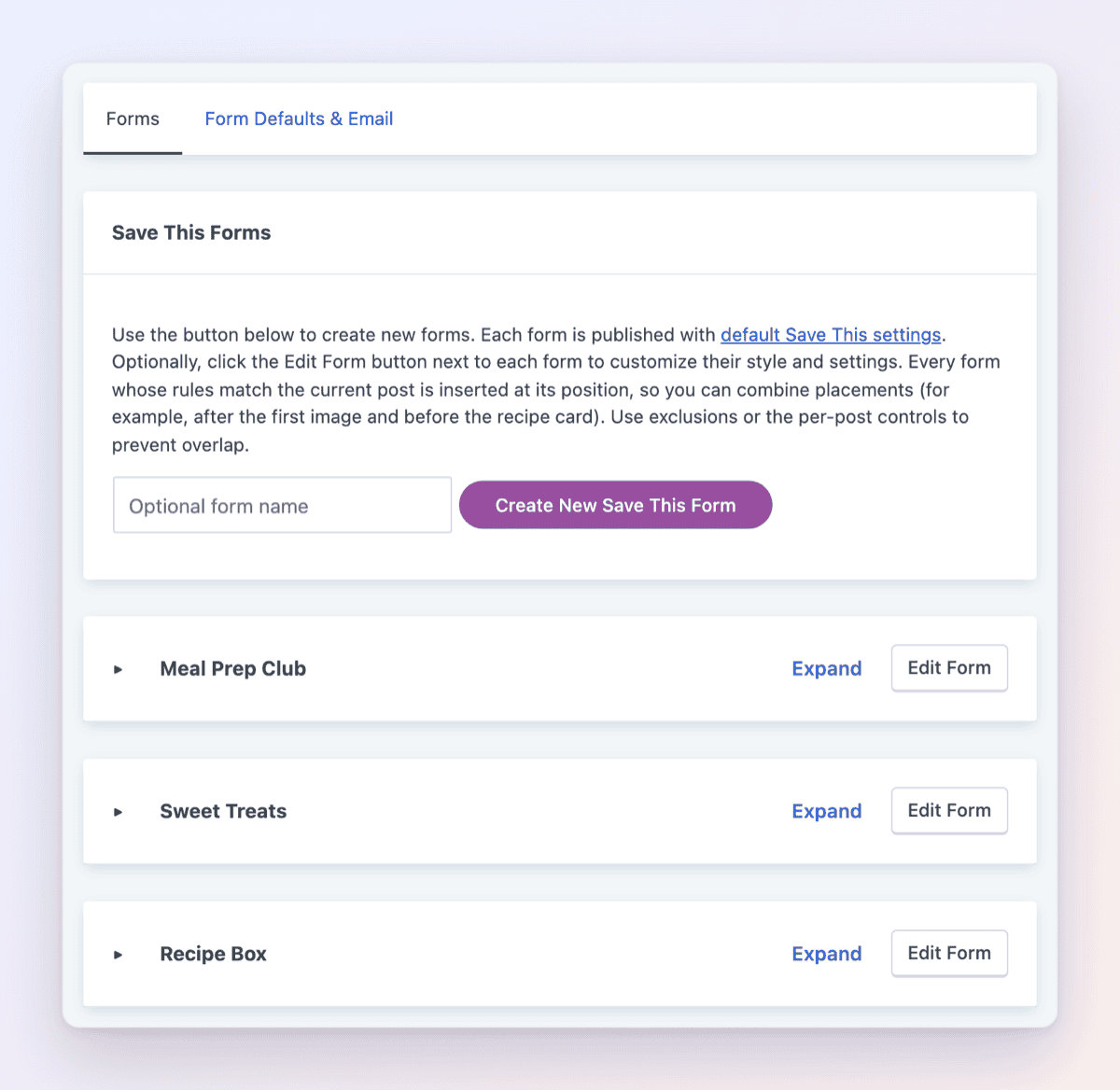
A dessert form for your baking posts, a dinner form for weeknight recipes, a meal prep form for your planning guides. Each reader sees the form that fits what they’re reading.
Already using Save This? When you update, your existing form and its placement settings move to the Forms tab automatically, so nothing changes on your site.
Show a form in more than one spot
Pick one or more positions for each form: top of the post, middle, after the first image, bottom, or before or after the recipe card. The form appears once in each spot you choose.
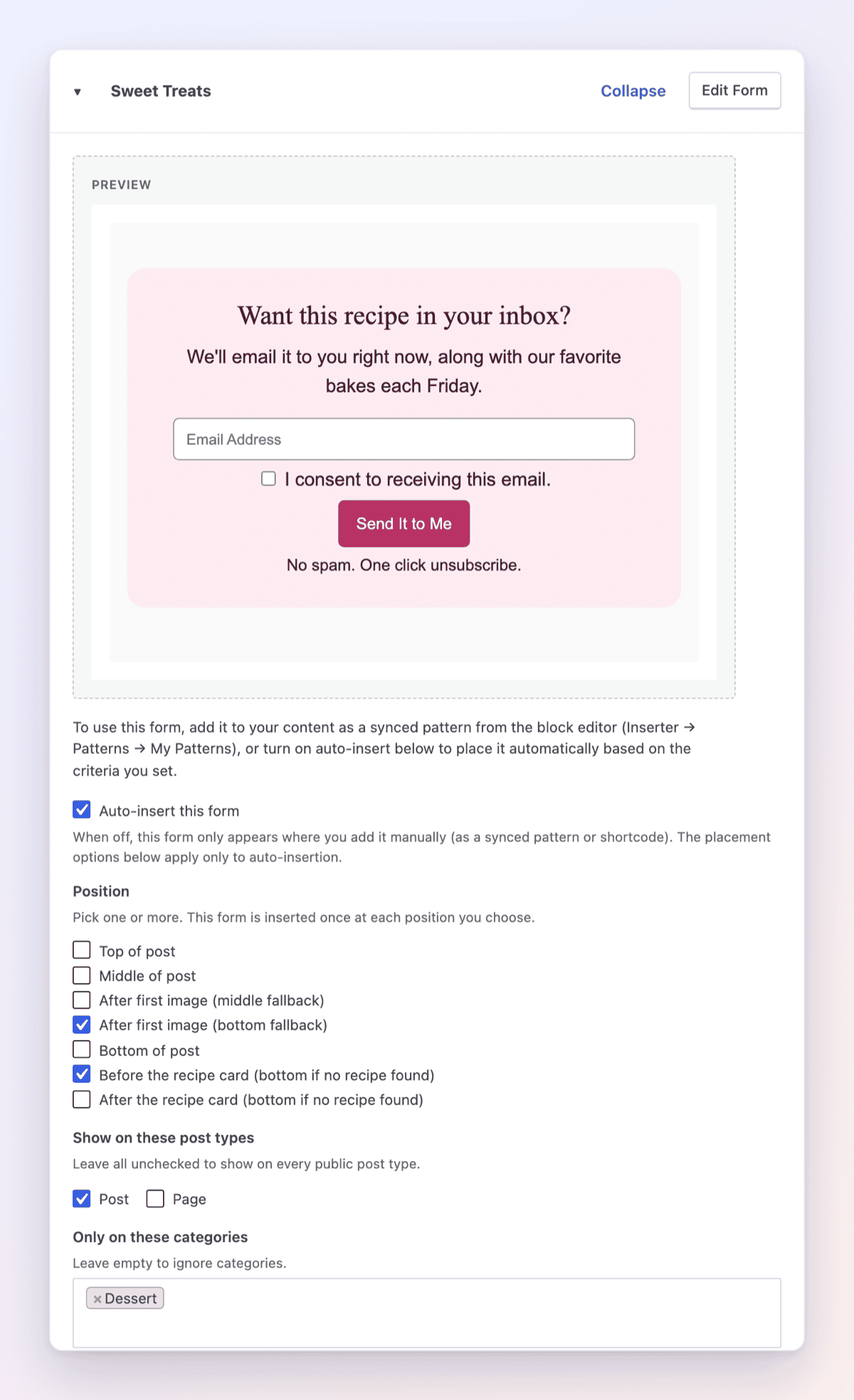
Before or after the recipe card
Two new positions put Save This right before or right after your recipe card, where readers are deciding whether to make the recipe. They work with WP Recipe Maker, MV Create and Tasty Recipes. If a post doesn’t have a recipe card, the form goes at the bottom of the post instead.
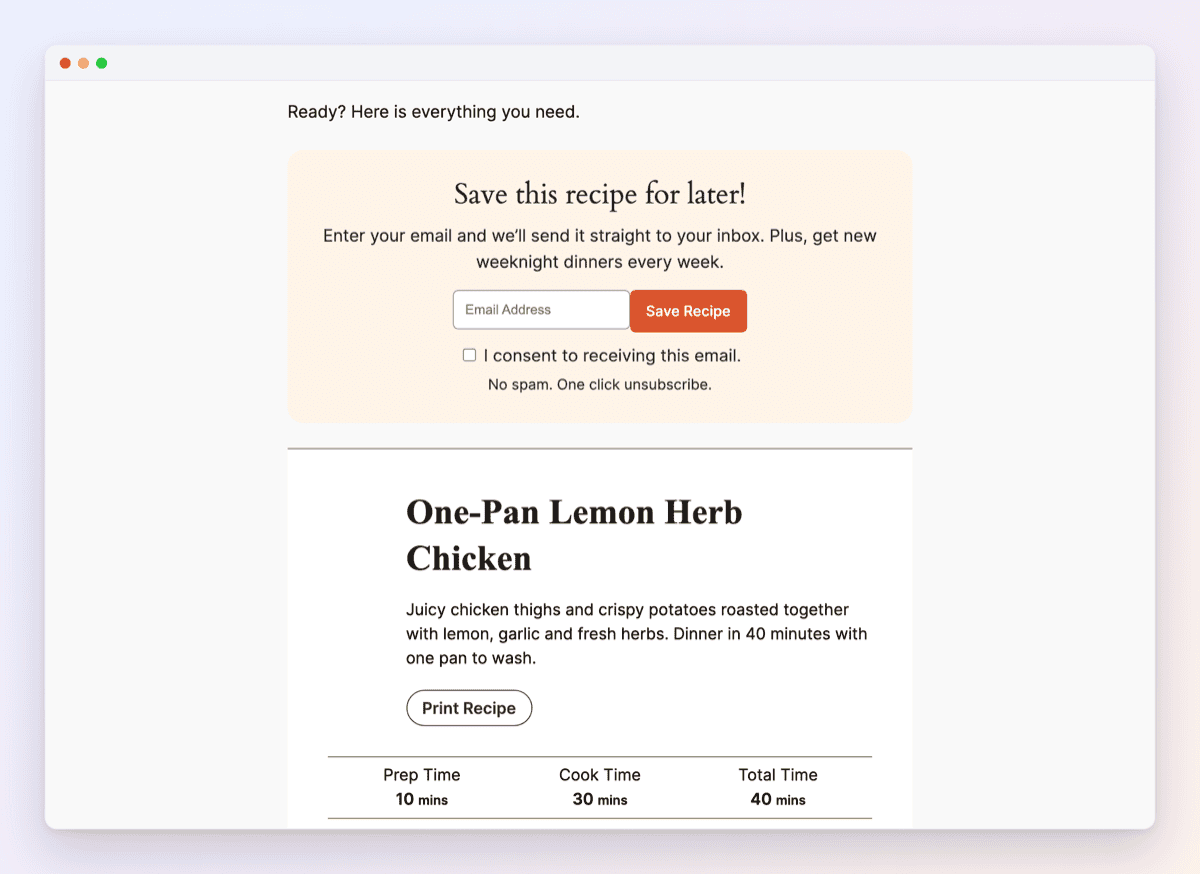
Keep forms out of the wrong places
If your theme or page builder wraps content in sections you don’t want Save This placed inside, list their CSS classes or IDs on the Form Defaults & Email tab. On posts that contain them, Save This goes at the bottom of the post instead.
Customize the email each form sends
Each form can now send its own email, with its own subject, message and closing note. Use merge fields like {name}, {post_title} and {site_name} to make it personal, and leave any field blank to use your global email settings.
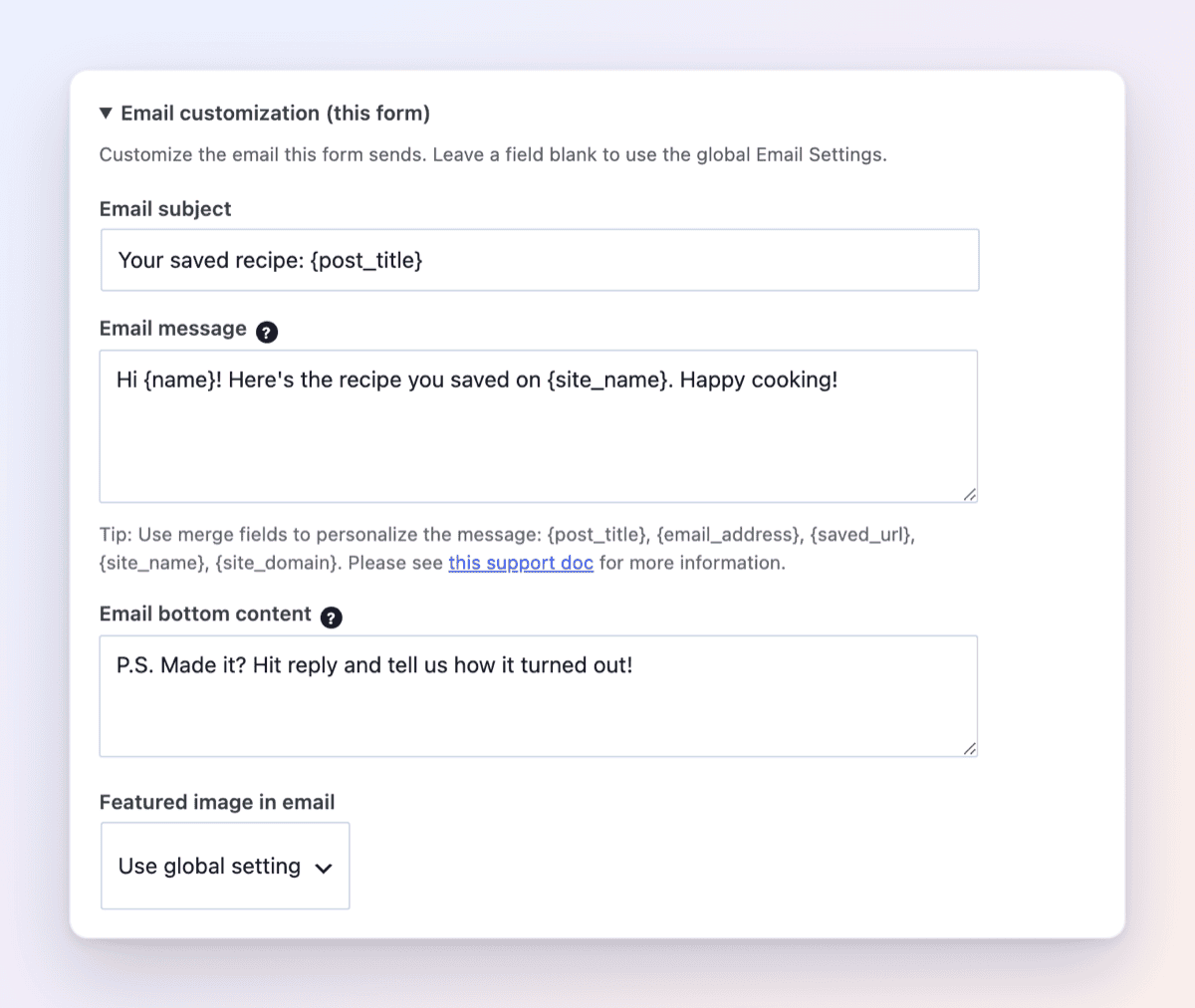
Know which form a subscriber used
Save This now records which form each subscriber used, in both the Zapier webhook and the mailing-list record. So you can segment your list and automate follow-up emails per form: dessert lovers get your best bakes, dinner subscribers get your weeknight recipes.
The new Save This block
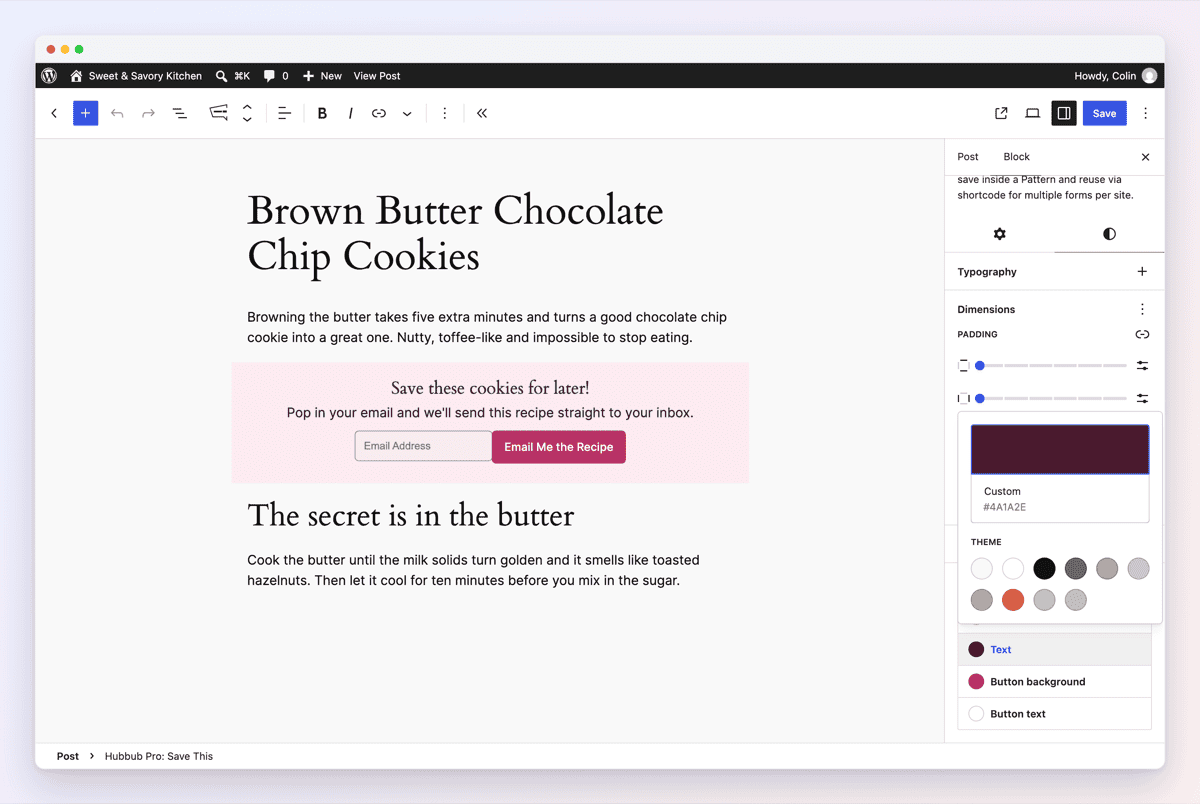
Prefer to place a form by hand? Add the new Save This block anywhere in the block editor and customize it right there: heading, message, button text, consent, what happens after someone signs up, and more. The new Text color setting colors the heading and message inside the form, so it matches your brand.
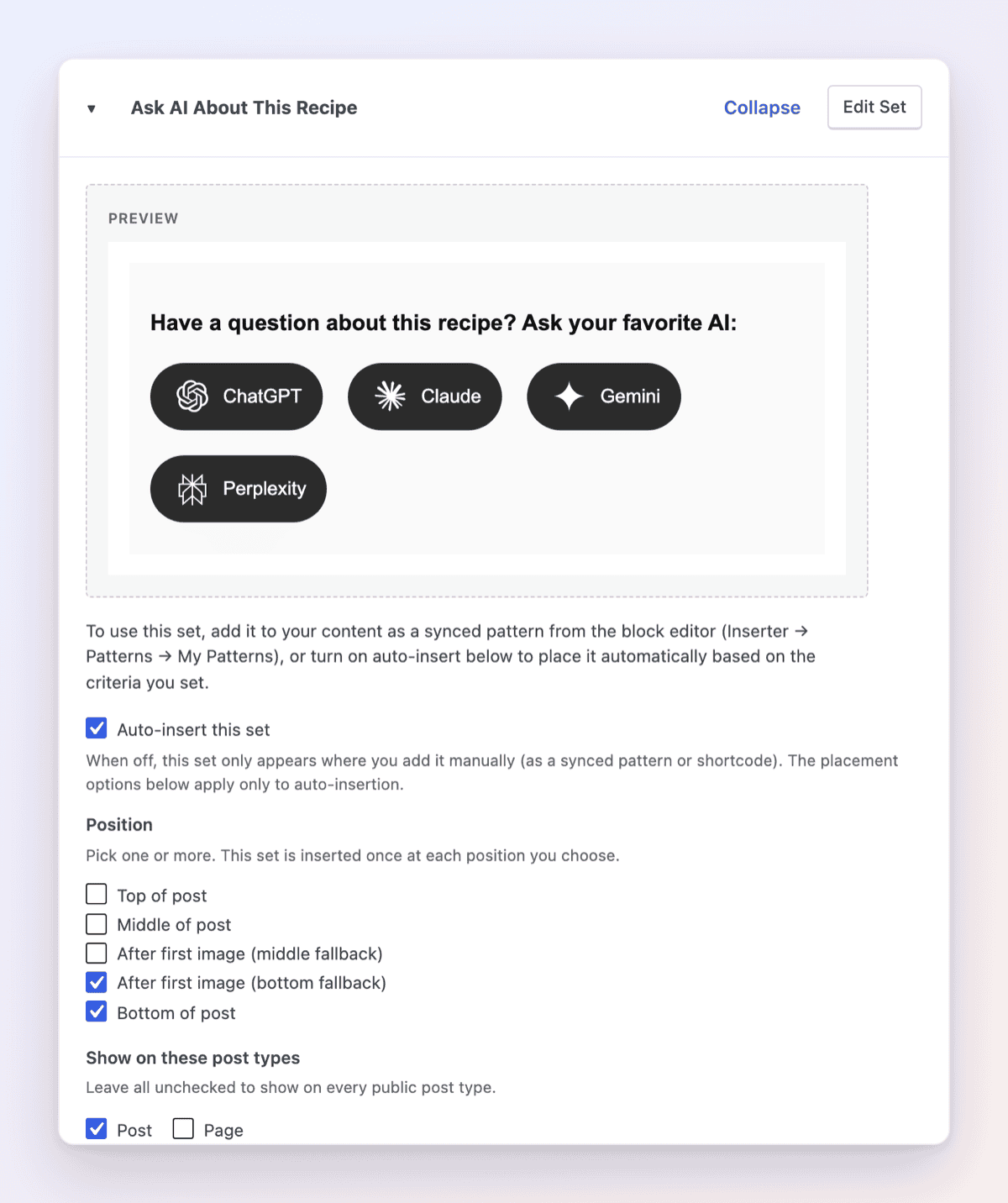
Multiple Action Buttons sets on the same post
Action Buttons get the same treatment. Create as many sets as you like on the Sets tab (Hubbub → Action Buttons → Sets), each with its own placement rules, and every set that matches a post appears on it. Put a Jump to Recipe and Share set at the top of your recipes and an Ask AI set at the bottom. One set can appear in more than one spot, too.
Plus, the Google Trusted Source button now removes “www.” from your domain automatically.
Before you update
Hubbub Pro now requires WordPress 6.1 or later. If your site is on an older version, update WordPress first.
This release also includes a long list of fixes, especially for where Save This and Action Buttons land on the page: “After first image” and “Middle” placement, recipe cards, Query Loops, RSS feeds and more. See the full changelog for everything in 2.31.0.
As always, we’ve added new filters and actions behind the scenes to make our features pluggable and useful to developers. See our Support Docs for more detailed information.
We think this is a great release of Hubbub and we’re excited about future releases coming soon. Keep your plugin up to date via your WordPress Admin.
As always, take good care!
The Hubbub Team